EN - Citrix Workspace App for Windows - Install and Configure
1. Download Citrix Workspace App
https://www.citrix.com/downloads/workspace-app/windows/workspace-app-for-windows-latest.html
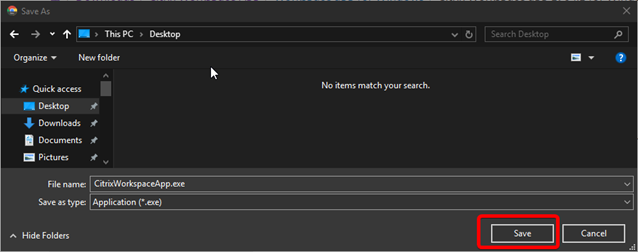
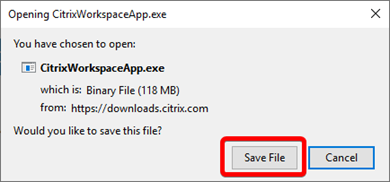
Save the program on your desktop or in the download folder :
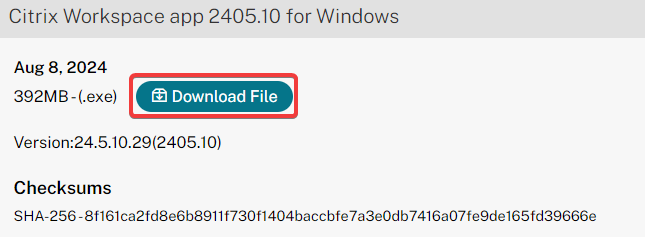
Click "Download File"
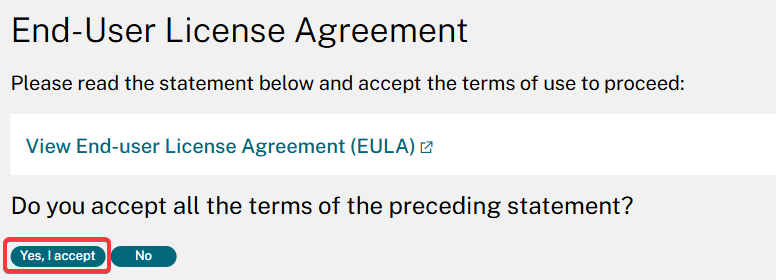
Click on "Yes, I accept"
Microsoft Edge :

Google Chrome:
Firefox :
2. Installation
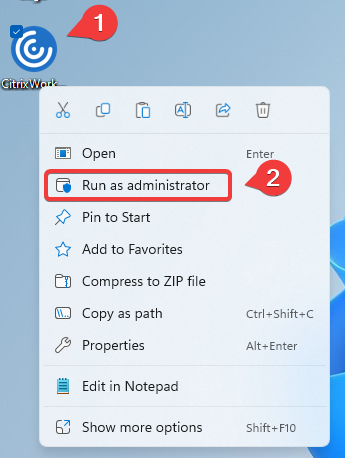
Launch the downloaded .exe as administrator :
1 : Right clic on the CitrixWorkspaceApp.exe file previously downloaded
2 : Click on "Run as administrator"
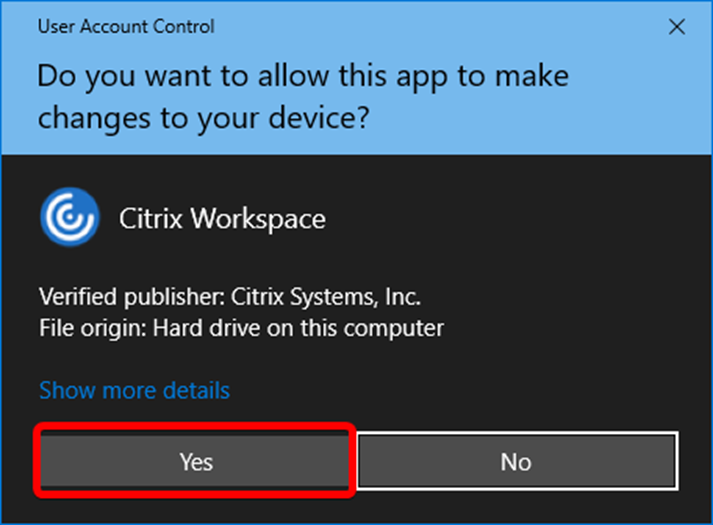
Validate the message of’avertissment (administrator rights required) :
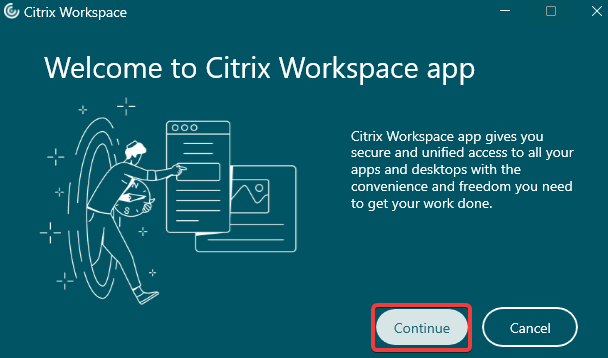
click on "Continue"
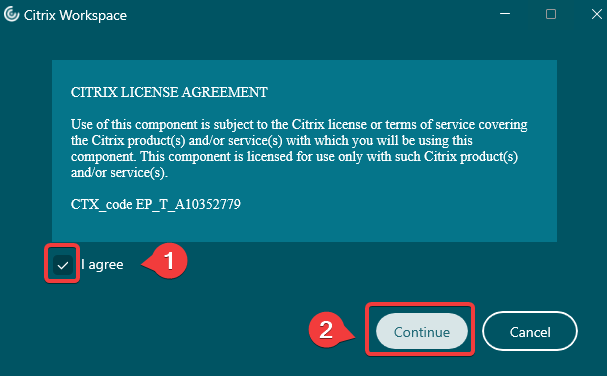
Select "I agree" and click on "Continue"
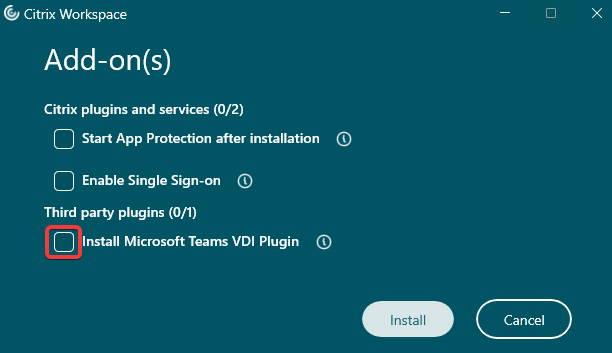
Delect "Install Microsoft Teams VDI Plugin"
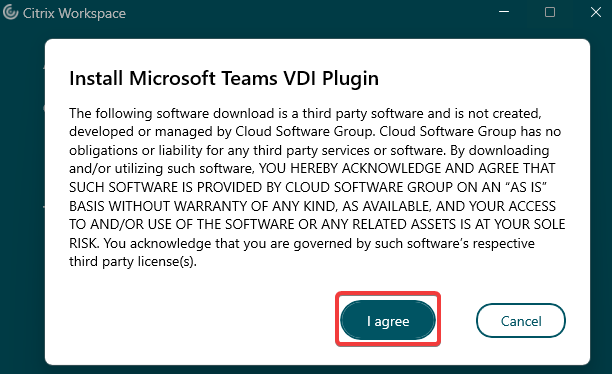
Thenk click on "I agree" :
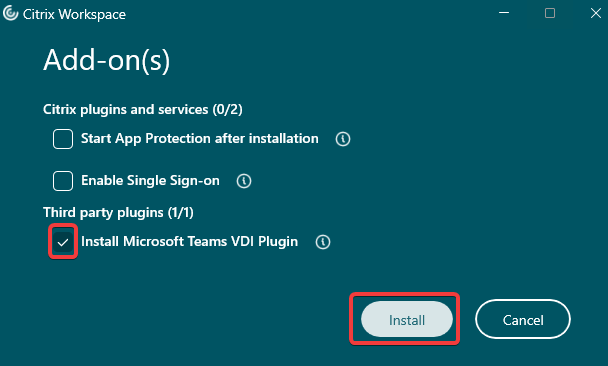
Click on "Install"
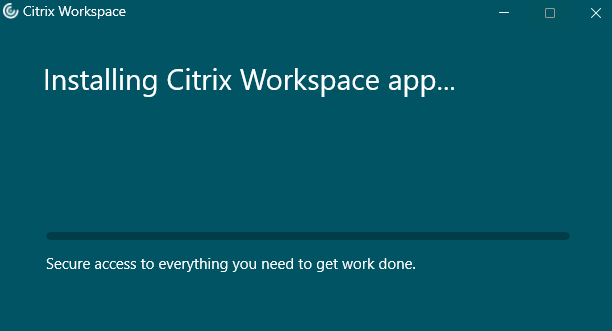
Citrix WorkspaceApp installation in progress :
3. Setting up the KissLabs Store:
connect.kisslabs.ch
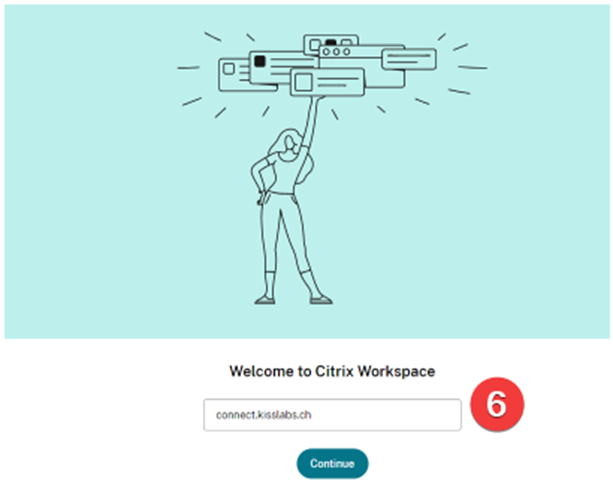
connect using mail account and password provided :

4. Launch the application
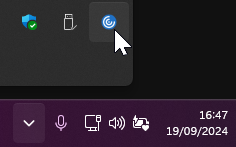
Double-click on the’ Citrix icon next to the’clock:
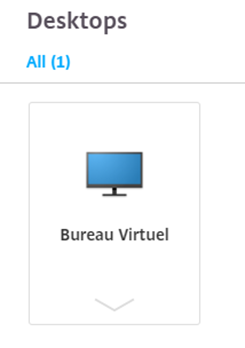
One click to "Virtual Desktop" to launch the application or the desktop :