
2FA - DUO OTP Configuration - New version - EN
1. Sign in to Microsoft
Go to:to https://login.microsoftonline.com
Enter your email address
Enter your password
Click “Next”

2. Choose the authentication method and app
Once connected, you will be able to choose the application used to manage two-factor authentication.
1: Click “I want to use a different authentication app”
2: Then click “Next”

2. Choisir la méthode et application d'authentification
Une fois connecté, vous pourrez choisir l'application permettant de gérer la double authentification.
1 : Cliquez sur "Je souhaite utiliser une autre application d'authentification"
2 : Puis cliquez sur suivant
3. Mobile App Configuration de l'application Mobile
TéléchargezDownload l'applicationthe DUO Mobile depuisapp l'from the Apple Store (pourfor iPhone) ouor lethe Play Store (pourfor Android).

1 : Une foisOnce DUO installéis surinstalled votreon natel,your lancermobile l'applicationphone, etopen cliquezthe surapp "and tap “+ Ajouter"Add”, puisthen choisirchoose "Utiliser“Use una QR Code"code”
2: Then click “Next”

4. Add your Microsoft account to DUO Mobile
1: Scan the QR code using the DUO Mobile app to add your Microsoft Office 365 account
2 : CliquezThen ensuiteclick sur "Suivant"
4. Ajouter votre compte Microsoft dans DUO Mobile
1 “Next”: Scanner le QR Code depuis l'application DUO Mobile pour ajouter votre compte Microsoft Office 365
2 : Cliquez ensuite sur "Suivant"

Désormais, votre compteYour Microsoft Office 365 aaccount bienhas éténow ajoutébeen danssuccessfully l'applicationadded deto double authentification DUO Mobile.
5. Confirmation de votre identité
Pour confirmer votre identité à l'étape suivante veuillez saisir le code affiché sous votre compte Microsoft, généré depuis l'applicationthe DUO Mobile two-factor authentication app.
5. Identity confirmation
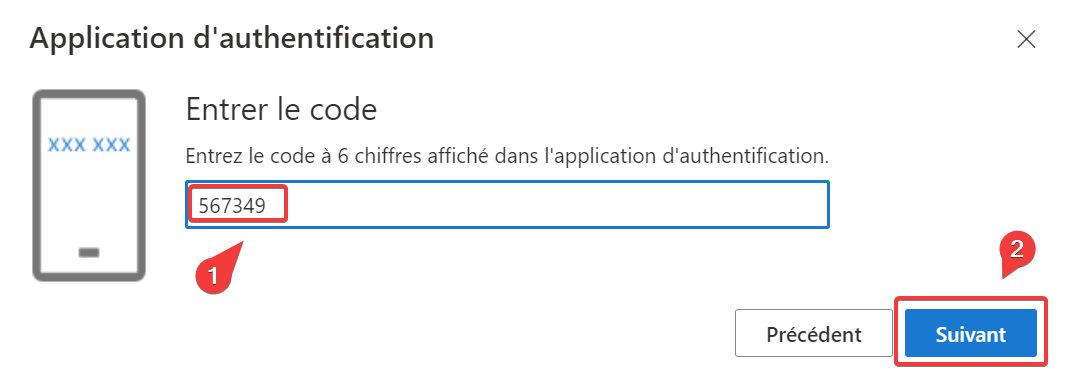
To confirm your identity at the next step, please enter the code displayed under your Microsoft account, generated by the DUO Mobile app.
11: :Enter Saisiryour votre6-digit code
2: àClick 6 chiffre
2“Next” : Cliquez sur suivant
LeThe message ci-dessousbelow apparaitwill uneappear foisonce lethe processusprocess terminé.is complete.

VotreYour doubletwo-factor authentificationauthentication géréemanaged parby l'applicationthe DUO Mobile aapp bienhas étébeen enregistrée.successfully registered.
CeThis code6-digit àcode, 6which chiffreis générégenerated toutes lesevery 30 secondesseconds, devramust êtrebe utiliséused pourfor touteany nouvellenew authentificationsign-in avecto votre compteyour Microsoft Office 365 suraccount deon nouveauxnew équipementsdevices (Natel,mobile phone, laptop, bureauvirtual virtuel,desktop, desktop).