
2FA - DUO OTP Configuration - New version - EN
1. Sign in to Microsoft
Go to https://login.microsoftonline.com
Enter your email address
Enter your password
Click “Next”

2. Choose the authentication method and app
Once connected, you will be able to choose the application used to manage two-factor authentication.
1: Click “I want to use a different authentication app”
2: Then click “Next”

3. Mobile App Configuration
Download the DUO Mobile app from the Apple Store (for iPhone) or the Play Store (for Android).

1: Once DUO is installed on your mobile phone, open the app and tap “+ Add”, then choose “Use a QR code”
2: Then click “Next”

4. Add your Microsoft account to DUO Mobile
1: Scan the QR code using the DUO Mobile app to add your Microsoft Office 365 account
2: Then click “Next”

Your Microsoft Office 365 account has now been successfully added to the DUO Mobile two-factor authentication app.
5. Identity confirmation
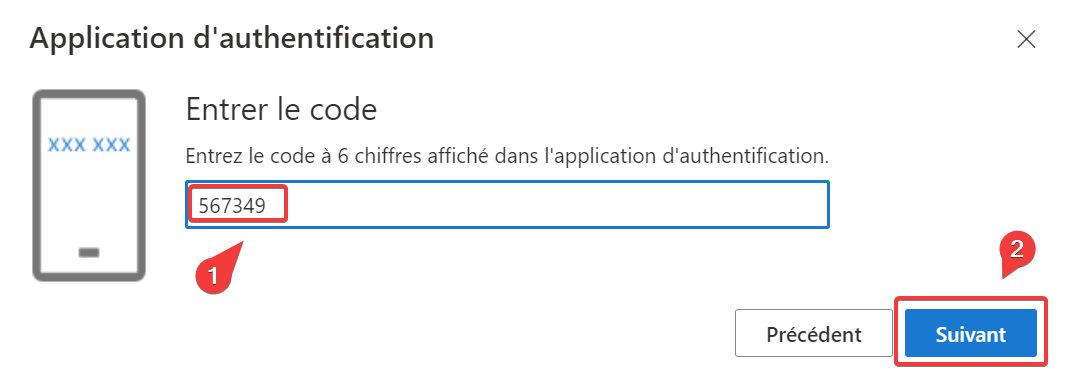
To confirm your identity at the next step, please enter the code displayed under your Microsoft account, generated by the DUO Mobile app.
1: Enter your 6-digit code
2: Click “Next”
The message below will appear once the process is complete.

Your two-factor authentication managed by the DUO Mobile app has been successfully registered.
This 6-digit code, which is generated every 30 seconds, must be used for any new sign-in to your Microsoft Office 365 account on new devices (mobile phone, laptop, virtual desktop, desktop).