
Office 365 Mail account - Configuration
1: Setup email on iOS devices (iPhone & iPad) :
Go to the settings :
In our example, we configure an account on an iPhone 6 Plus iOS 12.4.8
Make sure that you are connected to the internet via 3G or Wi-Fi

2 : Password and Account :
Under "Settings", go to “Password & Accounts".
Here, you can add account.

3: Add an email account :
You will see an interface where the different email accounts already set up on your device are listed.
Tap on "Add Account" to continue.

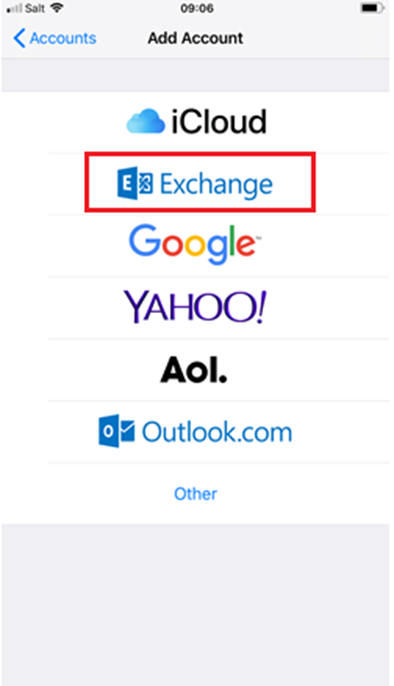
4 : Email account type
Select "Microsoft Exchange" as the account type.
5: Email account settings :
Enter the following details about your account:
Email: your full email address : e.g : “yourname@domain.ch”
Password: the account password we gave you
"Description": the display name of the account in the mailbox client,e.g Yourname Exchange.
You can test the settings of your KissMail account in the WEB interface OWA : https://mail.kisslabs.ch
Click “Next".

6: Advanced account settings :
Now enter your KissLabs account details.
"Email": your full email address.
"Exchange Server": mail.kisslabs.ch
"Domain": this is optional, but we advise you to enter it : kisslabs.
"Username": yourname or in some case yourname@yourdomain.ch.
"Password": account password we gave you
"Description": The display name of the account in your email client.
Click "Next" to continue.
