Synology - 2FA - Secure Sign In
Procedure for activating two-factor authentication (2FA) with Secure Sign In application on your user account
1 - Log in with your credentials to the access URL (web link) that was sent to you by email.
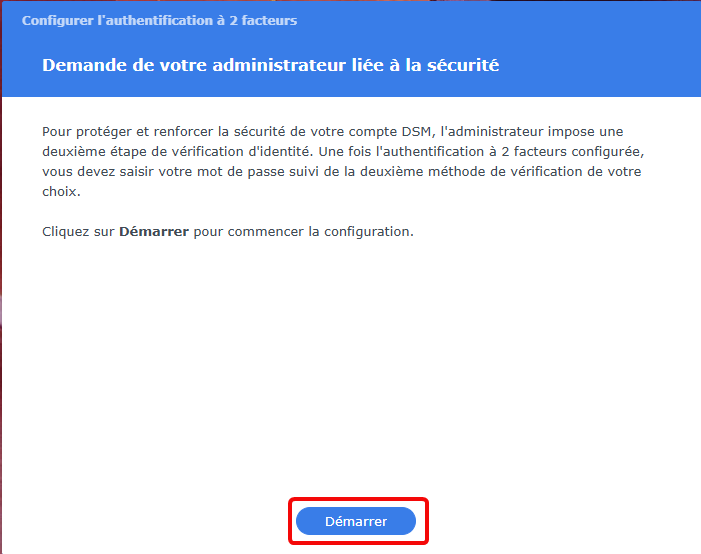
2 - After Log in succesfully, yclick on "Start" or "Démarrer"
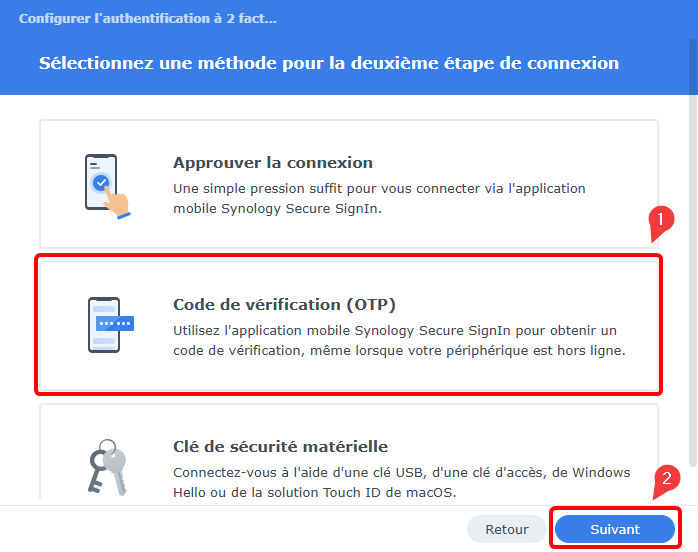
3 - Select "OTP verification code" or "Code de vérification OTP" and click Next
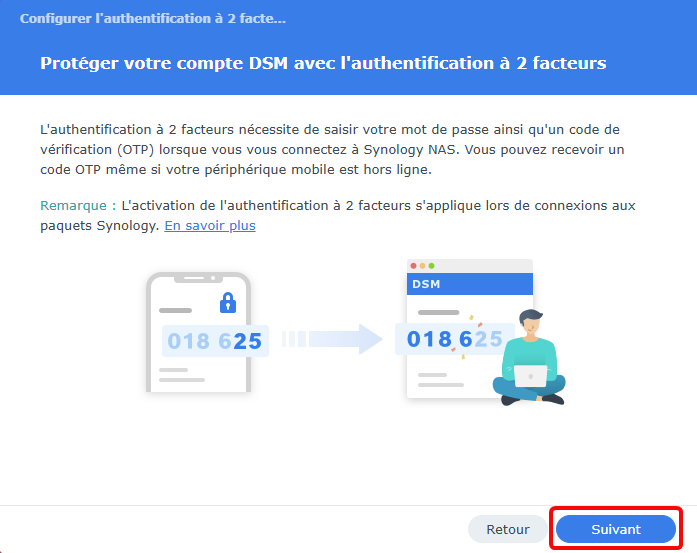
4 - Read the explanations and click on Next
5 - Download the Secure Sign In application by clicking on "Scan QRcode"
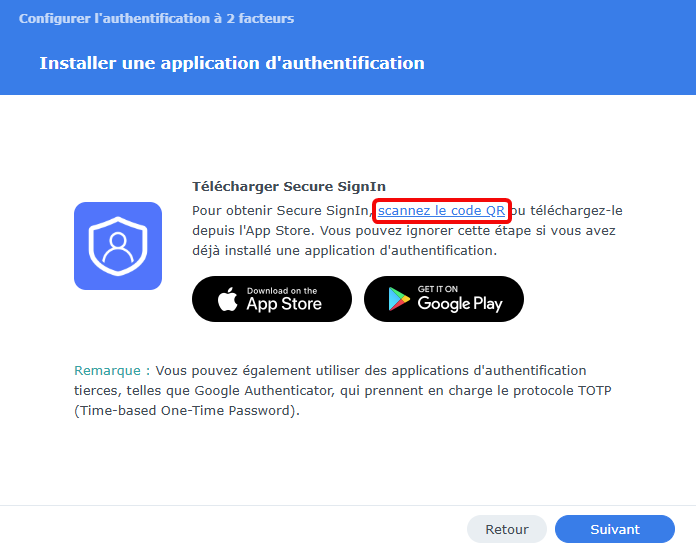
6 - Scan the QRcode with your phone, then on your phone, click on Download and Install Secure Sign In application. Then click on Next
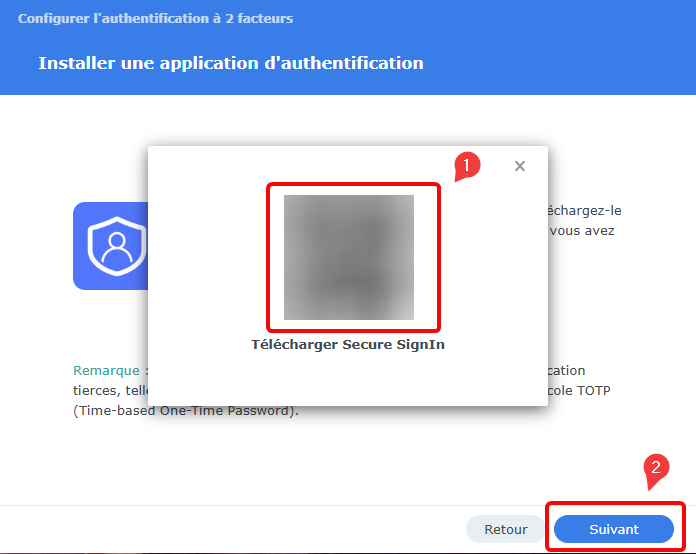
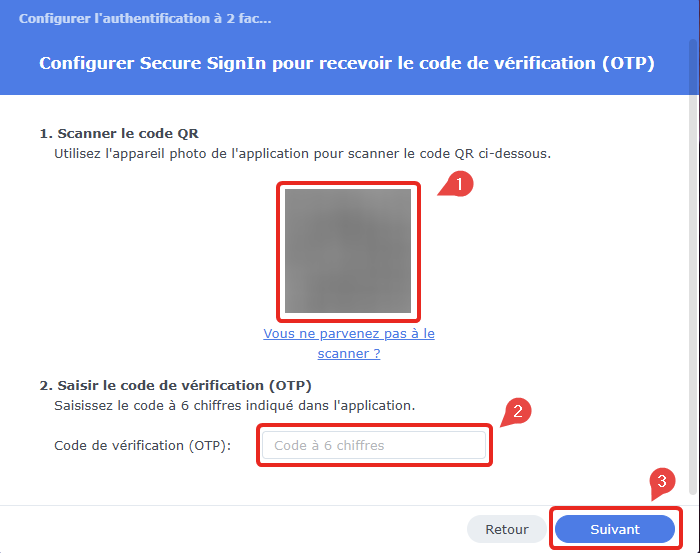
7 - Then, open Secure Sign In on your phone, choose "Add an account" and click on Scan QRcode.
You will now be able to scan the QRcode display on your computer screen in order to add the account to your Secure Sign In application (step 1)
As soon as your account as been added to 2FA Secure Sign In app, it will display a 6 digit code, that you will have to write on your screen (step 2)
After entering your 6 digit code, simply click on Next (step 3)
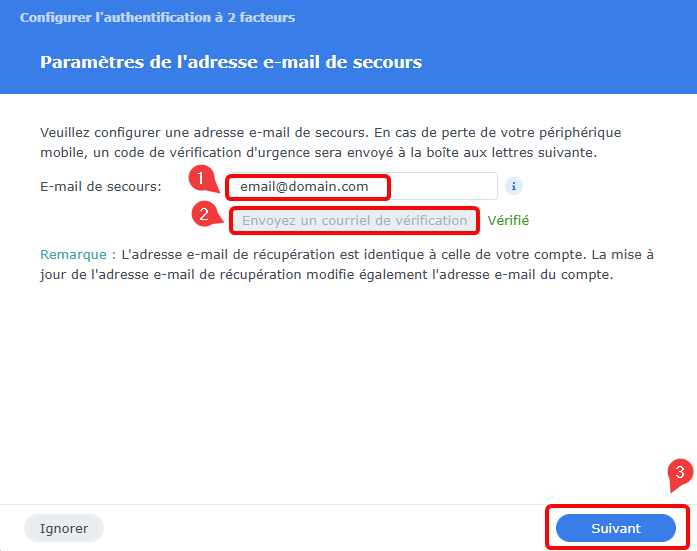
8 - You can now configure a backup email address in case you lose your phone and access to Secure Sign-in application
Simply enter your email address (step 1)
And click on Send a verification mail (step 2)
Finally, click on Next (step 3)
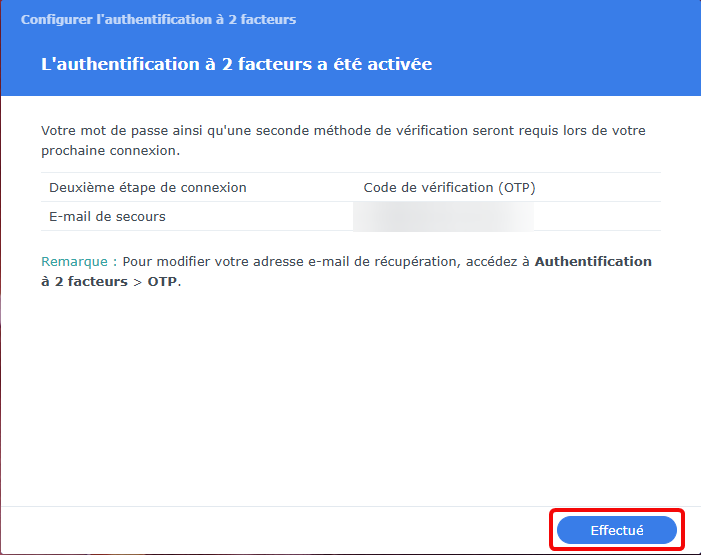
9 - Two-factor authentication (2FA) with Secure Sign In application has now been successfully configured on your user account.
Simply click on Next to access your data