
Configuration mail iOS - Outlook app - EN
1. TéléchargementDownload etand installationInstall the Outlook appApp suron iOS (iPhone & iPad)
Assurez-vousMake d'êtresure bienyou connectéare àconnected to the internet (WifiWi-Fi ouor 4G).
TéléchargezDownload etand installezinstall l'applicationthe Outlook surapp l'on your iPhone (Depuisfrom l'the Apple Store).
CliquezThen, ensuitetap l'iconethe Outlook icon.

2. ConfigurationConfigure Outlook
UneOnce fois l'applicationthe Outlook ouverte,app cliquezis suropen, tap "Get Started", puisthen surtap lethe menu déroulantin enthe hauttop àleft gauchecorner etand cliquezselect sur "Add Email Account" ou "Ajouter un compte mail" .
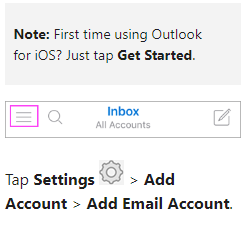
3. AjouterAdd unan compteEmail emailAccount
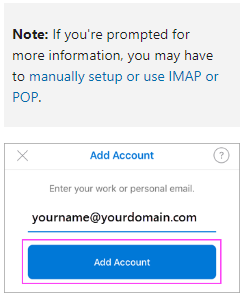
SaisirEnter ensuiteyour votre adressefull email complèteaddress etand cliqueztap sur "Add account" ou "Ajouter compte"Account".
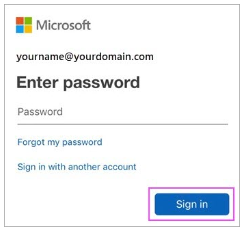
4. SaisirEnter leYour motEmail deAccount passe du compte mailPassword
SaisissezEnter leyour motemail deaccount passepassword deand votretap compte mail et cliquez sur "Sign in" ou "Se connecter"In".
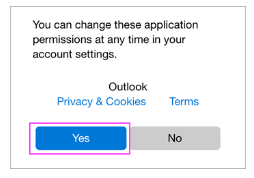
5. Outlook synchronisationSynchronization Calendrier,(Calendar, ContactsContacts, ...etc.)
CliquezTap sur "Yes" outo "Oui" pour donner les permissions àallow Outlook deto synchronisersync votreyour calendrier, voscalendar, contacts, vosnotes, notesand ...other data.
6. FinalisationFinalization
ParcourezGo l'introthrough etthe vousintroduction, êtesand maintenantyou prêtare ànow utiliserready l'applicationto use the Outlook pourapp iOSon iOS.
