
Configuration mail iOS - Outlook app - EN
1. Download and Install the Outlook App on iOS (iPhone & iPad)
Make sure you are connected to the internet (Wi-Fi or 4G).
Download and install the Outlook app on your iPhone (from the Apple Store).
Then, tap the Outlook icon.

2. Configure Outlook
Once the Outlook app is open, tap "Get Started", then tap the menu in the top left corner and select "Add Email Account".
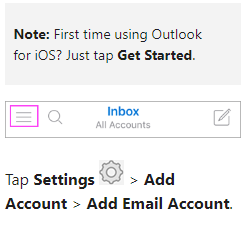
3. Add an Email Account
Enter your full email address and tap "Add Account".
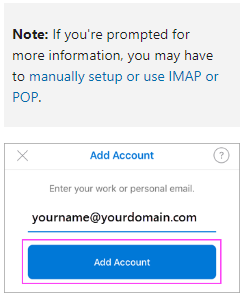
4. Enter Your Email Account Password
Enter your email account password and tap "Sign In".
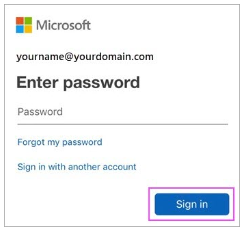
5. Outlook Synchronization (Calendar, Contacts, etc.)
Tap "Yes" to allow Outlook to sync your calendar, contacts, notes, and other data.
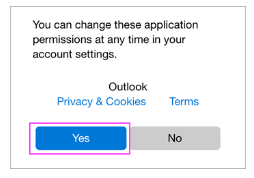
6. Finalization
Go through the introduction, and you are now ready to use the Outlook app on iOS.
