
SpamTitan Outlook Add-in
Français · English
Français
L'add-in SpamTitan permet de bloquer ou d'autoriser un expéditeur directement depuis Outlook, et de gérer votre quarantaine (messages retenus par l'antispam).
Fonctionne uniquement avec Outlook Classic sur Windows 11 (pas avec le nouvel Outlook ni Outlook sur le web).
Téléchargement et installation
- Téléchargez la dernière version : https://storage.kisslabs.ch/s/gEw6Gc2RqtJ3KWf (fichier
.msi). - Fermez complètement Outlook.
- Double-cliquez sur le fichier téléchargé, puis Next (Suivant) › Install (Installer) › Finish (Terminer). Aucun droit d'administrateur n'est nécessaire.
- Rouvrez Outlook : le groupe SpamTitan apparaît dans l'onglet Accueil.
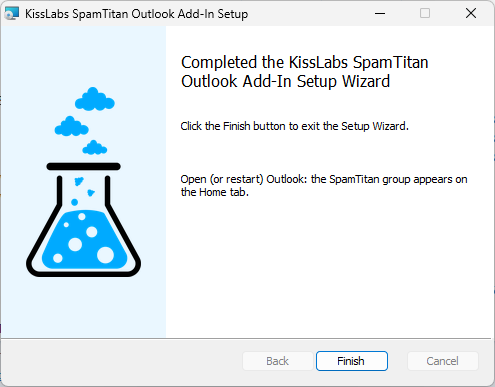
Les versions suivantes s'installent ensuite automatiquement : un message vous prévient, la nouvelle version est active au prochain démarrage d'Outlook.
Où le trouver
Le groupe SpamTitan se trouve dans l'onglet Accueil d'Outlook, dans l'onglet Message d'un e-mail ouvert, et dans le clic droit sur un ou plusieurs e-mails.

Ruban simplifié :

Première connexion
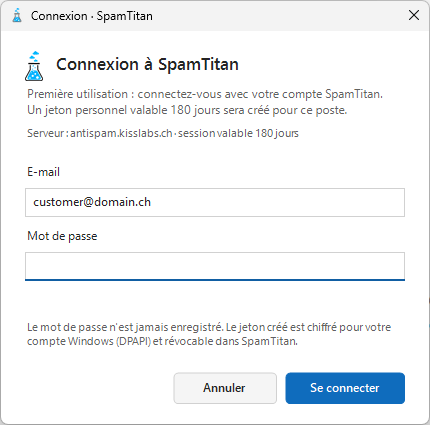
Au premier clic, la fenêtre Connexion à SpamTitan s'ouvre. Saisissez l'adresse e-mail et le mot de passe de votre compte de messagerie hébergé par Kisslabs.
Bloquer un expéditeur indésirable
- Sélectionnez un ou plusieurs e-mails.
- Bloquer ▾ › Bloquer l'expéditeur (son adresse uniquement) ou Bloquer le domaine (tout l'expéditeur, par ex.
exemple.com). - Vérifiez la liste, puis confirmez.
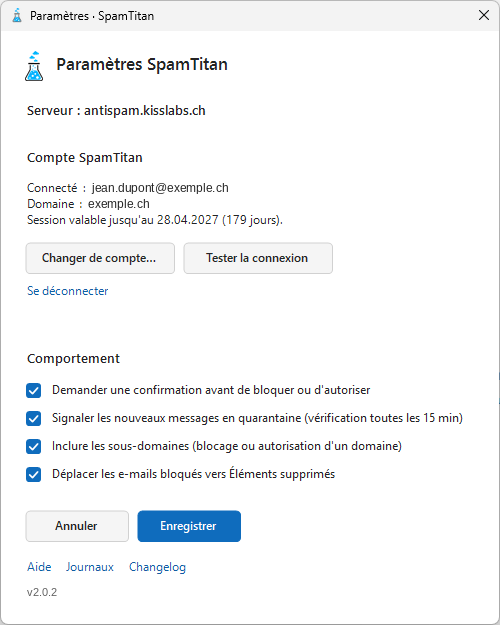
Les e-mails bloqués sont déplacés dans Éléments supprimés (désactivable dans les paramètres).
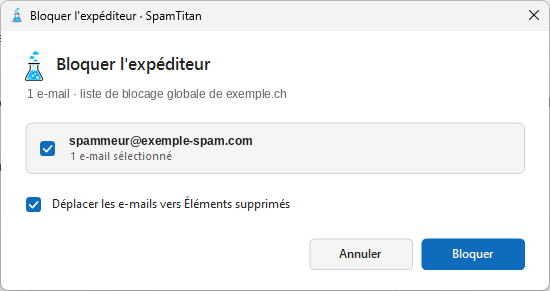
Par sécurité, votre propre domaine et les principales messageries publiques (Gmail, Bluewin, Outlook.com…) ne peuvent pas être bloqués. Une adresse précise (client@gmail.com) reste bloquable.
Autoriser un expéditeur légitime
Même principe avec Autoriser ▾ › Autoriser l'expéditeur ou Autoriser le domaine. Ses prochains messages ne seront plus retenus par l'antispam. Rien n'est déplacé.
Voir et modifier mes listes
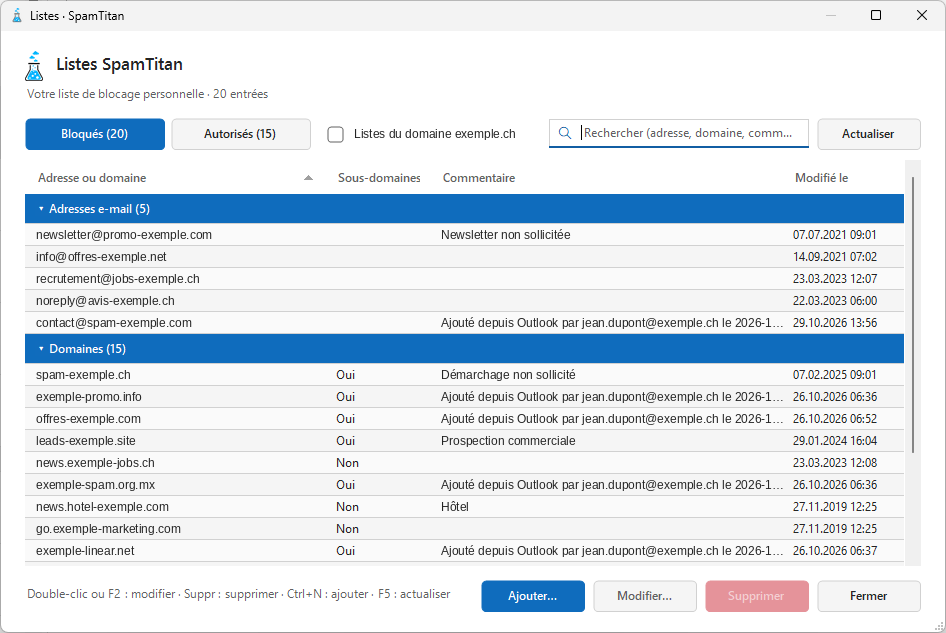
Bloquer ▾ › Voir ma liste de blocage… (ou Autoriser ▾ › Voir ma liste d'autorisation…). Vous pouvez y rechercher, ajouter, modifier le commentaire ou supprimer une entrée.
Quarantaine
Le bouton Quarantaine affiche les messages retenus par l'antispam. Un chiffre rouge Quarantaine (n) signale les nouveaux messages.
- Libérer : le message vous est remis.
- Autoriser : l'expéditeur est autorisé, puis le message est libéré.
- Supprimer : suppression définitive.
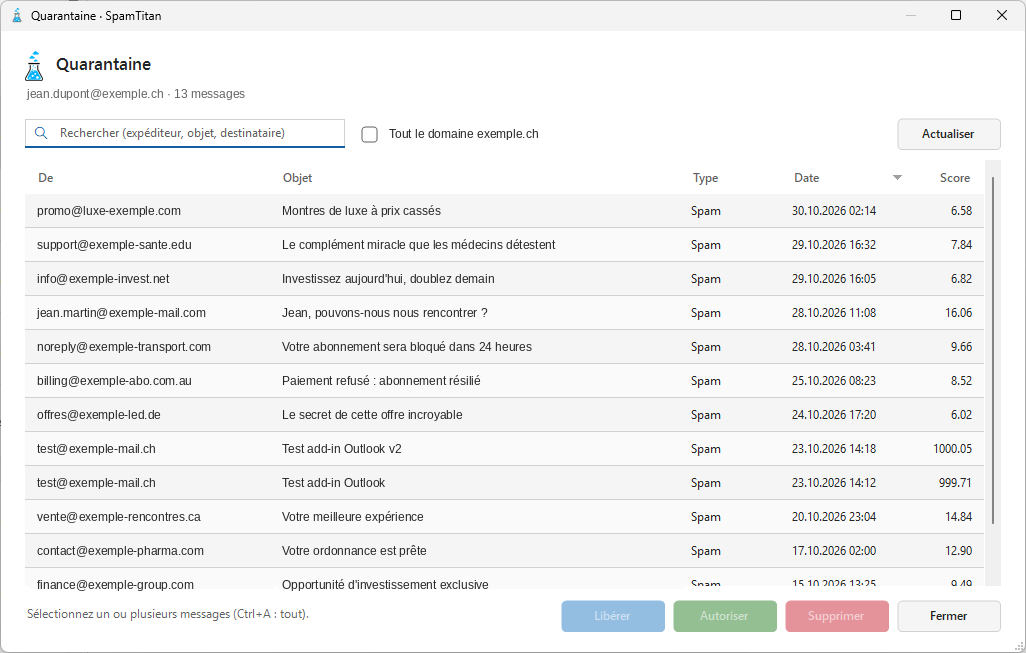
Un message contenant un virus ou une pièce jointe interdite ne peut pas être libéré depuis Outlook : contactez le support.
Paramètres
Icône ↘ (flèche) en bas à droite du groupe SpamTitan, ou Paramètres… dans le clic droit.
Un problème ?
- Le groupe SpamTitan n'apparaît pas : fermez complètement Outlook et rouvrez-le.
- La connexion est redemandée : votre session a expiré, reconnectez-vous.
- Autre problème : contactez support@kisslabs.ch et joignez le journal du jour : Paramètres › Journaux.
English
The SpamTitan add-in lets you block or allow a sender directly from Outlook, and manage your quarantine (messages held by the spam filter).
Works only with Outlook Classic on Windows 11 (not the new Outlook or Outlook on the web).
Download and installation
- Download the latest version: https://storage.kisslabs.ch/s/gEw6Gc2RqtJ3KWf (
.msifile). - Close Outlook completely.
- Double-click the downloaded file, then Next › Install › Finish. No administrator rights are needed.
- Open Outlook again: the SpamTitan group appears in the Home tab.
Later versions then install automatically: a message tells you, and the new version is active the next time Outlook starts.
Where to find it
The SpamTitan group is in Outlook's Home tab, in the Message tab of an open email, and in the right-click menu of one or more emails.
Simplified ribbon:
First sign-in
On the first click, the Sign in to SpamTitan window opens. Enter the email address and password of your mailbox account hosted by Kisslabs.
Block an unwanted sender
- Select one or more emails.
- Block ▾ › Block sender (that address only) or Block domain (the whole sender, e.g.
example.com). - Check the list, then confirm.
Blocked emails are moved to Deleted Items (can be turned off in the settings).
For safety, your own domain and the large public mail providers (Gmail, Bluewin, Outlook.com…) cannot be blocked. A specific address (client@gmail.com) can still be blocked.
Allow a legitimate sender
Same steps with Allow ▾ › Allow sender or Allow domain. Their next messages will no longer be held by the spam filter. Nothing is moved.
View and edit my lists
Block ▾ › View my block list… (or Allow ▾ › View my allow list…). You can search, add, edit the comment or delete an entry.
Quarantine
The Quarantine button shows the messages held by the spam filter. A red number Quarantine (n) flags new messages.
- Release: the message is delivered to you.
- Allow: the sender is allowed, then the message is released.
- Delete: permanent deletion.
A message with a virus or a forbidden attachment cannot be released from Outlook: contact support.
Settings
↘ (arrow) icon at the bottom right of the SpamTitan group, or Settings… in the right-click menu.
Something wrong?
- The SpamTitan group is missing: close Outlook completely and open it again.
- You are asked to sign in again: your session has expired, sign in again.
- Any other issue: contact support@kisslabs.ch and attach today's log: Settings › Logs.