
Xink for Microsoft Outlook on MAC OS
If your signature has been created on Xink server you will need to ask us for a Verification Code.
This code will be sent by mail.
1. Retrieve your Access Code
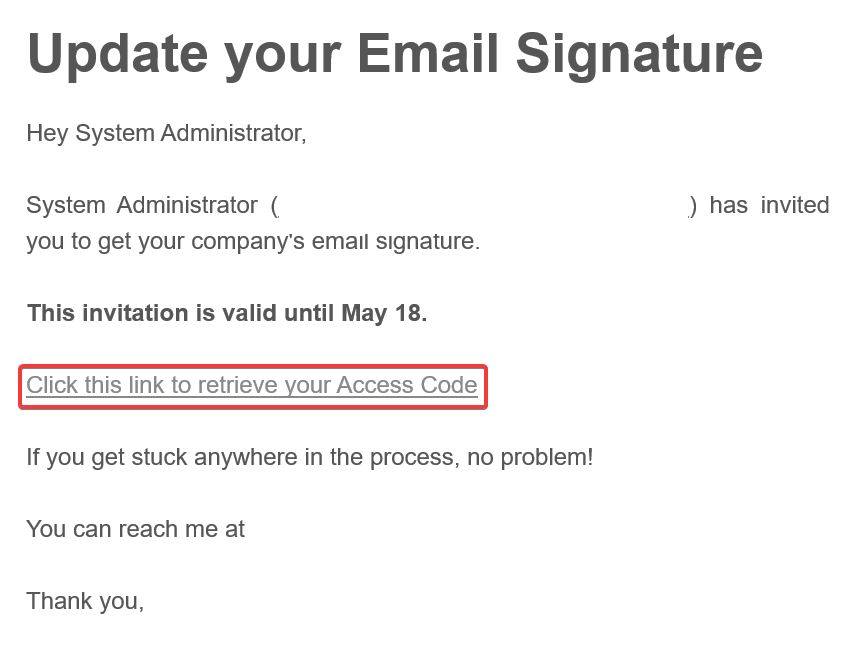
As soon as you received the mail from Xink, click on "Click this link to retrieve your Access Code" :
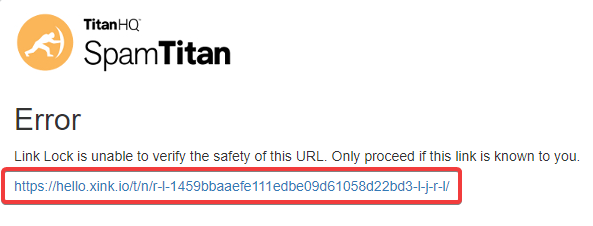
Then, click on the link below :
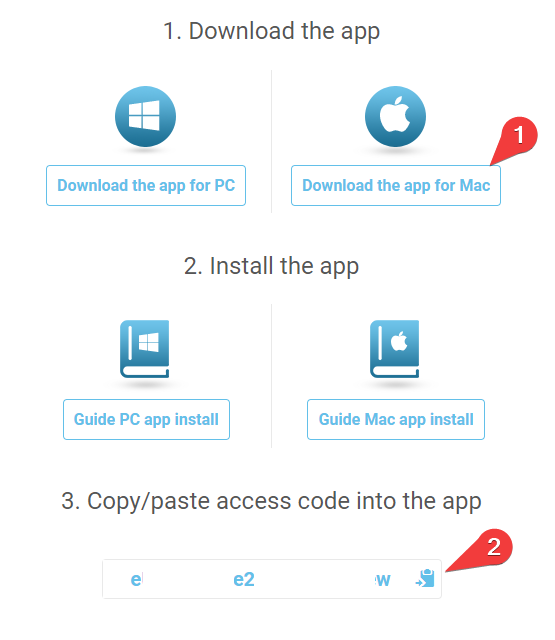
On the next step, click on "Download the app for Mac" and Copy/Paste the generated code.
This Code will be necessary for the next step in order to registered your account and link Xink to your email account
2. Download Xink software on your Mac
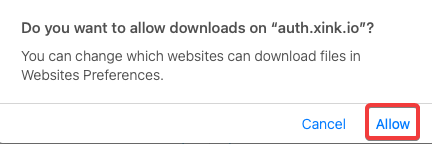
Click on "Download the app for Mac and next on "Allow" :
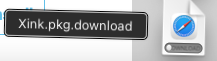
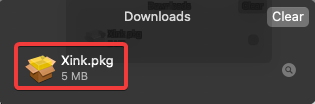
You will the the downloaded file in your download folder:
3. Install Xink software on your Mac
Just double click on the Xink.pkg file to launch Xink installation :
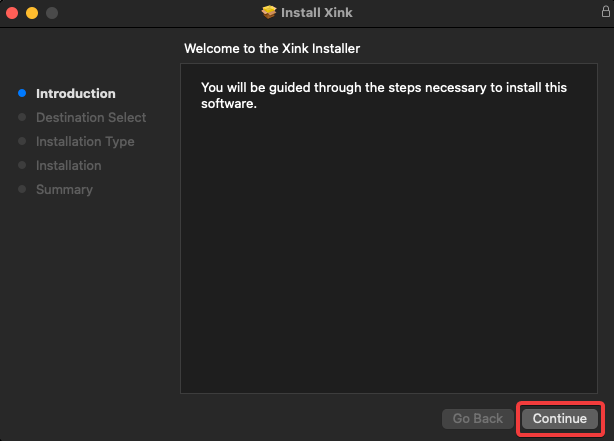
Then, click on "Continue" to start the installation :
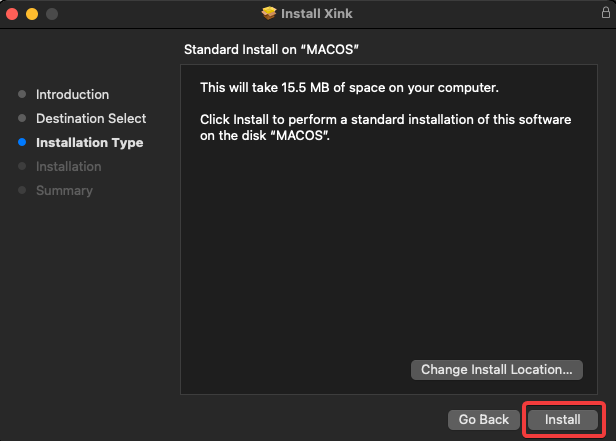
Click on "Install" :
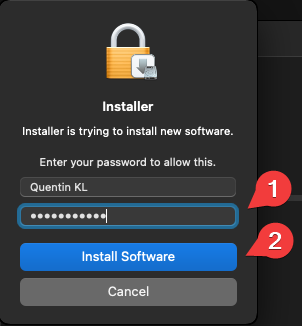
Enter your Mac password and click on "install Software" :
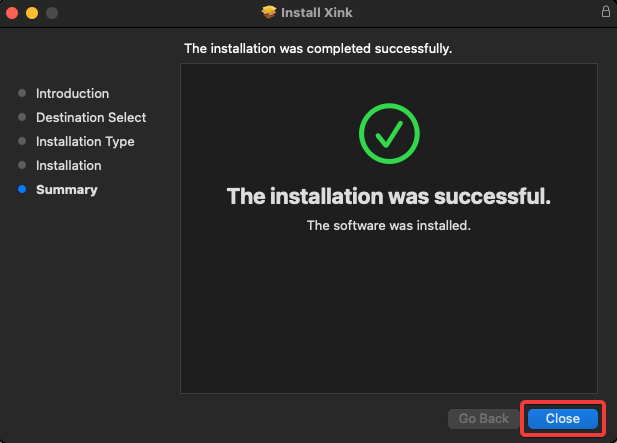
Click on "Close" to finish Xink installation :
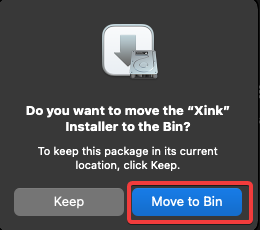
Click on "Move to Bin" to trash the installer package :
4. Launch Xink and Configure the application
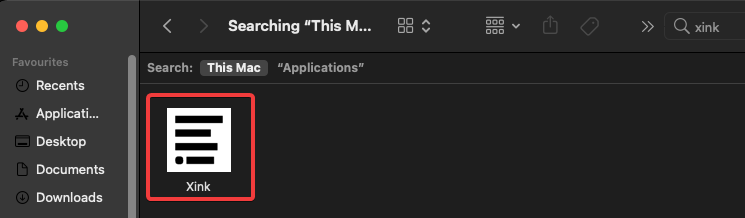
Open your "Finder", then go in "Application", search for Xink and double click on it to launch the application :
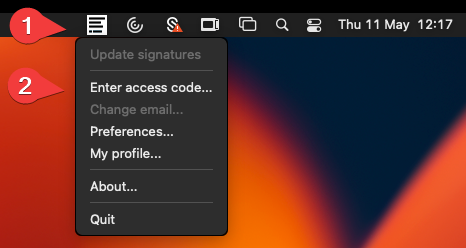
Click on Xink application at the upper right, then click on "Enter access code" :
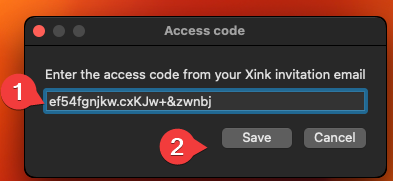
Paste your access code and click on "Save":
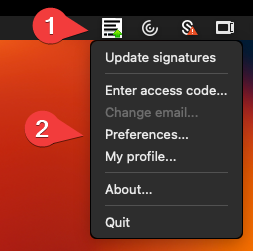
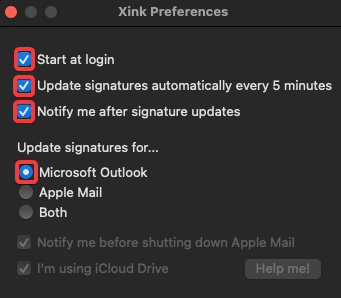
Then, click on Xink logo, and "Preferences" :
Tick "Start at login", "Update signature automatically every 5 minutes", "Notify me after signature update".
Tick "Microsoft Outlook"
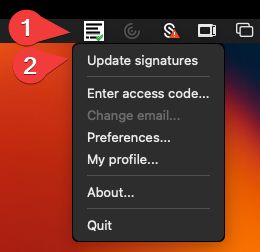
Open Xink and click on "Update signatures"
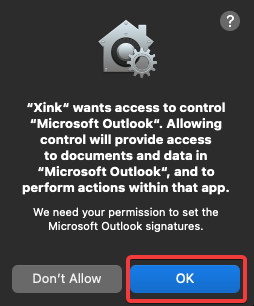
Allow Xink to access Microsoft Outlook, click on "OK"
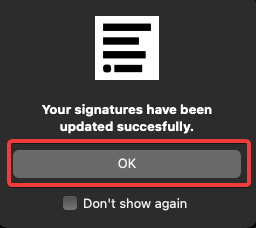
Your signature have been updated succesfully, just click on "OK"
5. Open Outlook and configure your signature
Click on Microsoft Outlook logo application
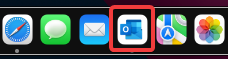
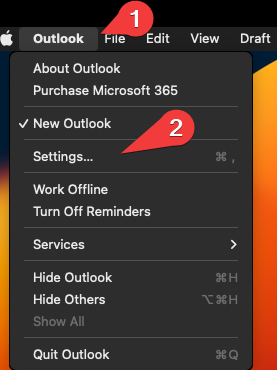
Then go to : "Outlook" and click on "Settings"
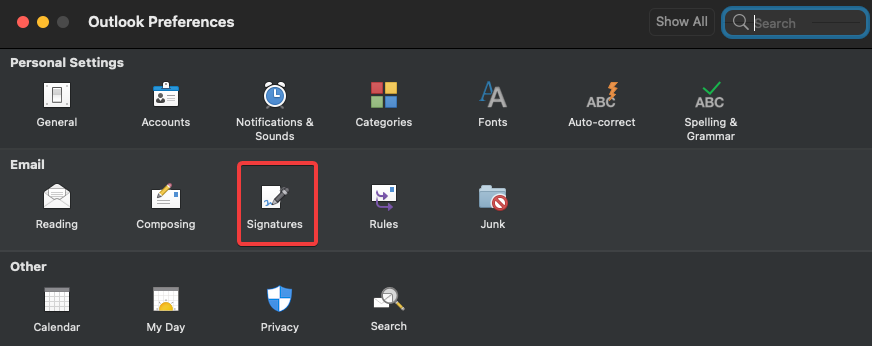
Then, click on "Signatures"
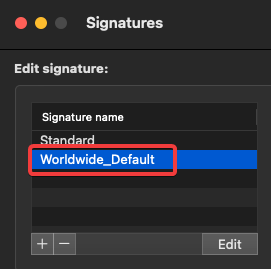
You will now see your signature here. In this example, signature named is : "Worlwide_Default"
Now you need to configure the default signature for New messages and Replies/Forwards
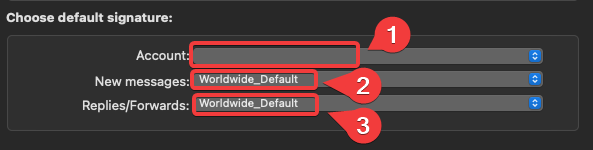
Simply select your gmail account in the account list, then choose the associated signature for this account (Worldwide_Default for this example)
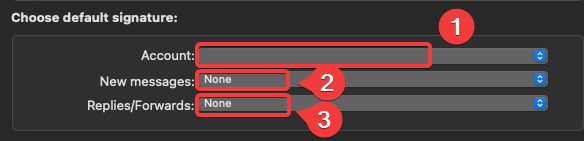
Iin this example, the signature named associated with the account is "Worldwide_Defaut"
Finaly it should be like this
1 : Your gmail email address account
2 : Your signature for this account (For New mails)
3 : Your signature for this account (For Replies and Forwards mails)
You should now be able to see your signature as soon as you click on create a new email in Outlook application