
Configuration on Android - Outlook app - EN
Be sure you are connected to the internet before goin ahead (Wifi or 4G/5G)
1. Download and install Outlook pp on Android
Download and install the Outlook application on Android (From the Play Store)
Then click on the Outlook icon :

2. Outlook configuration
As soon as the application is installed and open, click on "Get started" if it's the first time, otherwise go to "Settings" then "Add account" and "Add email account" :

3. Add email account
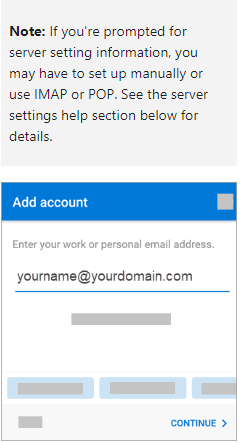
Enter your email address and click on "Add account"
4. Choose Exchange
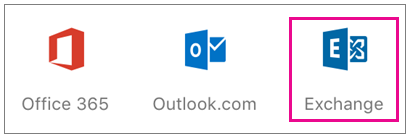
Here you must select the account type : Exchange
5. Add email account - Automatic/Manual
Add your email address and password then click on "Sign-in"
If the automatic configuration is not working, click on "Continue" and entre the parameters/settings below :
- Username (adresse de courrier) : yourmail@yourdomain.ch
-
Server name: mail.kisslabs.ch
-
Domain\email adresse: kisslabs.ch or kisslabs\yourmail@yourdomain.ch or kisslabs\yourname (not yourname@yourdomain.ch)
-
Password: your exchange email account password
- Description: Exchange "Your Name"
6. Finalize
Click on "Next to add your account.