Configuration on iOS - New outlook app version - EN
Be sure you are connected to the internet before going ahead (Wifi or 4G/5G)
1. Download and install Outlook app on iOS (iPhone & iPad)

Simply click on download then, install and Open the app.
2. Outlook configuration
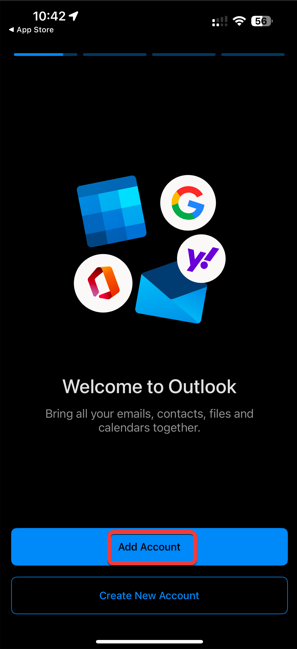
As soon as the outlook application is open, click on "Add account" :
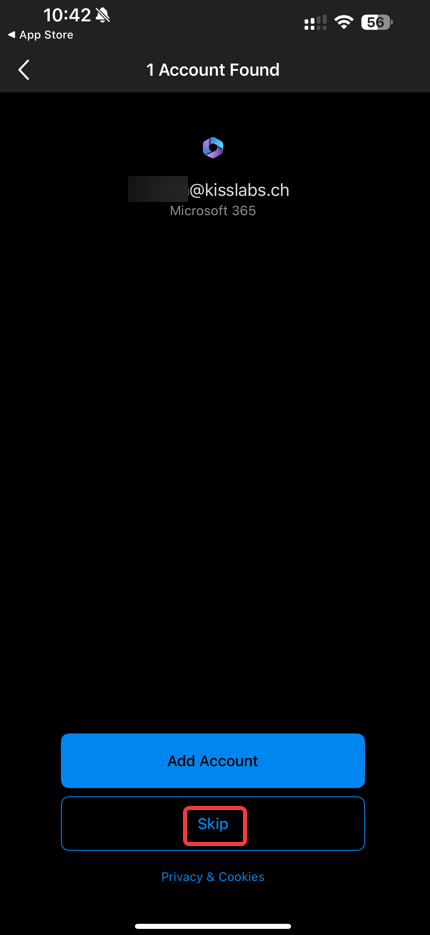
By default, the Outlook application should find an Office 365 if you email account is also an office 365 account.
To be able to force add your Exchange email account, click on "Skip"
3. Add an email account
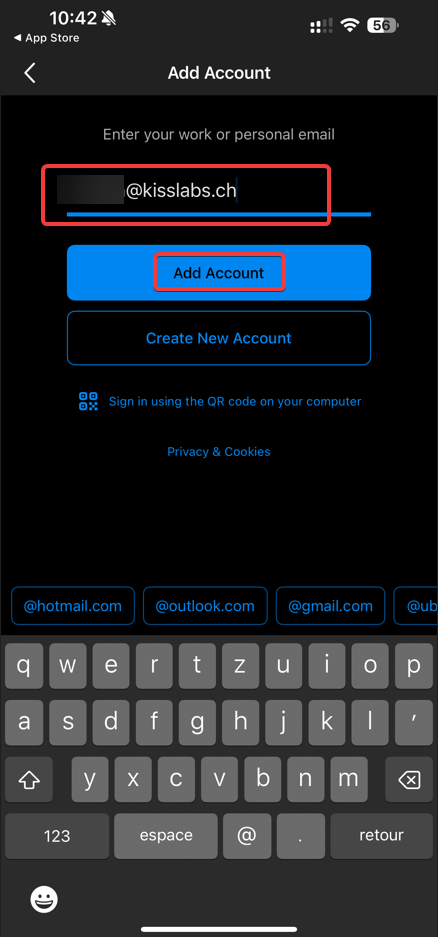
Enter your email address (Exchange email account9 and click on "Add account" :
If needed, click on "Not Microsoft 365"
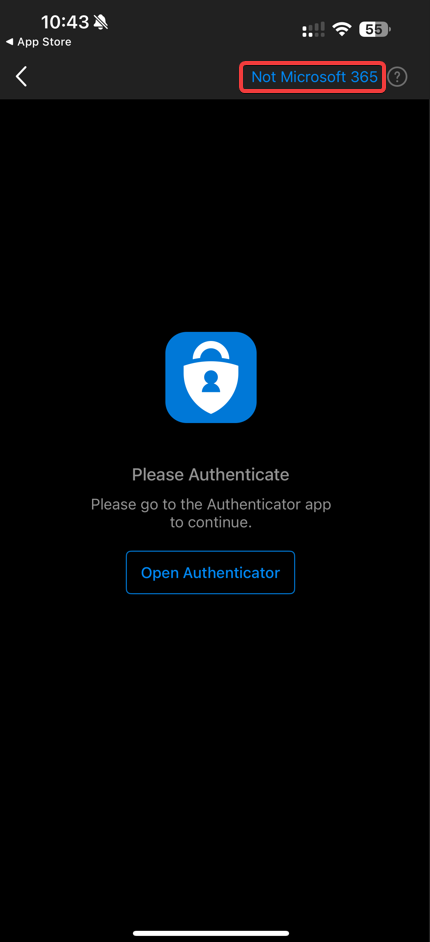
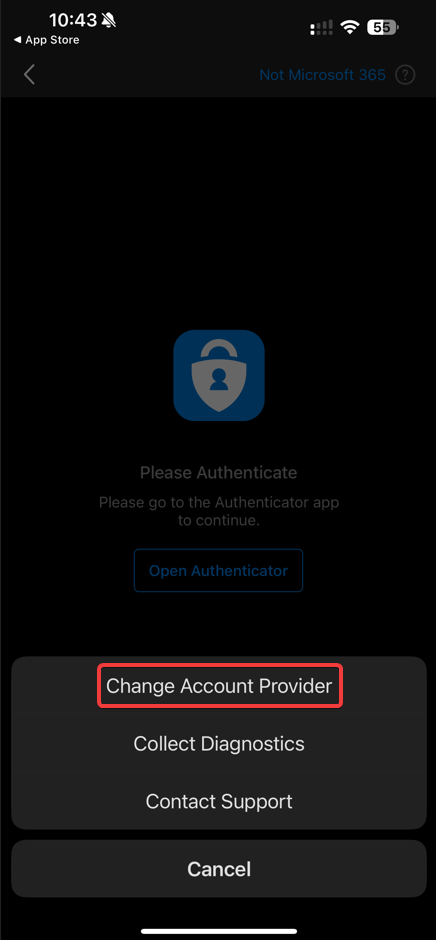
Then click on "Change account Provider" :
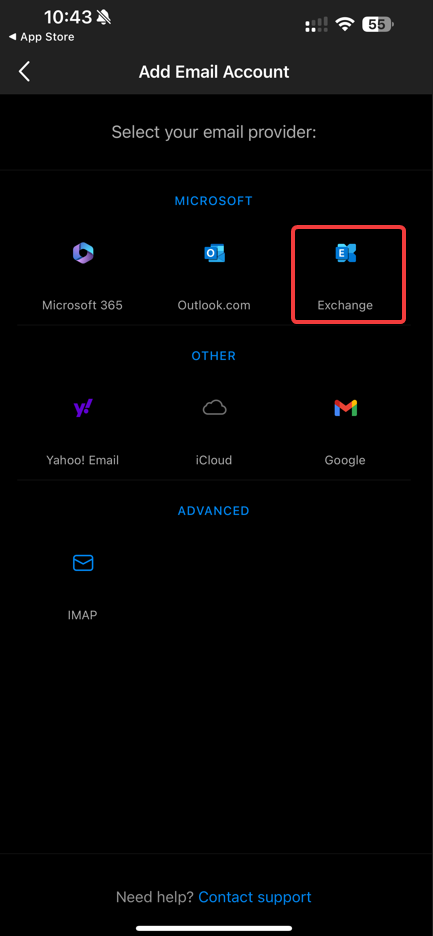
Here you will need to select the email account type : Exchange :
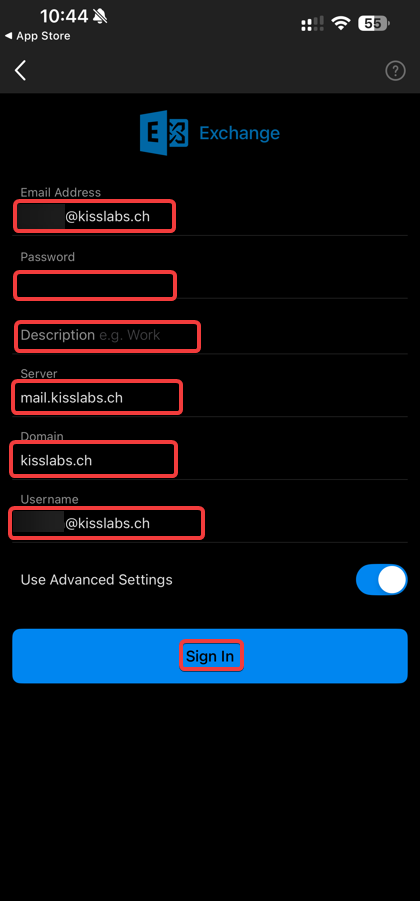
Enter Exchange email settings and parameters :
- Email address : youremail@yourdomain.ch
- Password: Votre mot de passe mail du compte Exchange
- Description : Exchange YourName
-
Server name: mail.kisslabs.ch
-
Domain: kisslabs.ch
-
Username: youremail@yourdomain.ch or simply youremail (Without the domain - If mail is john@domain.com, simply enter john)
4. Finalize
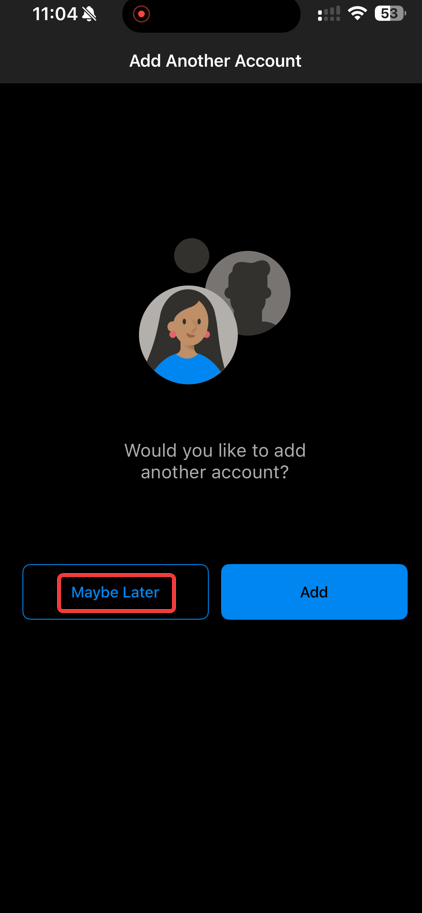
Now click on "Maybe later"
Your exchange email account has been added and should be available in the Outlook application
Your mailbox should start the synchronization.